Table of Contents
Push Notifications
GCM push notifications are deprecated. wrtc_kit does not support push notifications at the moment.
wrtc_kit.js has implemented Google Cloud Messaging, GCM as a way of sending push notifications.
Using push notifications you can receive calls even when web browser is closed.
If the web browser is closed IXNX server will send a GCM push notification to user's PC resulting in a popup window appearing at lower right corner of user's screen alerting about the incoming call:
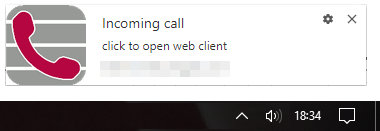
If user clicks on the alert the web browser is opened, the webrtc client page is loaded, and the incoming call starts ringing and can be answered by the user as usual. (Or denied if she chooses to.)
Prerequisites
The web server MUST have a valid https certificate. The web server your webrtc client is loaded from must have a real, valid https certificate. A self-signed certificate is not good enough. There is no way around this limitation.
Push Notifications only work for Chrome browser. If attempted to start push notifications on any other browser than Chrome for PC wrtc.adv.startPushNotifications() will fail silently.
Even though wrtc_kit comes with a predefinied GCM test account you are encouraged to go to the Google Firebase webpage and create your own account and Cloud Messaging project (it is free of charge).
Configuration
Before using push notifications you need to enter your server key into the Google API Key field of IXNX config page More Services > Push Notification. Enter AIzaSyDOK4MLYAlxidyHq2e5Pir9slk8KN5BySo to use the predefinied GCM test account, or enter the Legacy server key value of your Firebase project (found on its Project settings > Cloud Messaging page).
If you are using your own Firebase project enter its Sender ID (found on its Project settings > Cloud Messaging page) into the manifest.json file.
Your code
In the header of your web page you must include:
<head>
...
<link rel="manifest" href="/luci-static/resources/cbi/manifest.json">
<script src="https://www.gstatic.com/firebasejs/4.8.1/firebase-app.js"></script>
<script src="https://www.gstatic.com/firebasejs/4.8.1/firebase-messaging.js"></script>
...
</head>
In your wrtc.init() function you must set wrtc.adv.clientID to its cookie stored value:
wrtc.init = function() {
...
if ((webrtcDetectedBrowser == "chrome") && (wrtc.getCookie("cid")))
  wrtc.adv.clientID = wrtc.getCookie("cid");
...
};
In your wrtc.onLoggedIn() function you should attempt to restart push notifications if there is a client ID stored in cookie, to be able to detect if user has blocked notifications:
wrtc.onLoggedIn = function(arg) {
...
if (wrtc.getCookie("cid"))
  wrtc.adv.startPushNotifications();
...
};
The above code thus uses cookie entry cid= to detect if push notifications shall be used or not. Nothing is activated as long as there is no cid= entry in cookie. When using push notifications it is vital that client keeps exactly same client ID all the time thus we store it as cid= in the cookie.
Enable Push Notifications
To enable push notifications call wrtc.adv.startPushNotifications() and store your current wrtc.adv.clientID in the cookie:
wrtc.adv.startPushNotifications();
document.cookie= "cid=" + wrtc.adv.clientID + "; expires=Fri, 31 Dec 9999 23:59:59 GMT";
You may use your own Firebase project's Legacy server key and Sender ID values as arguments to wrtc.adv.startPushNotifications().
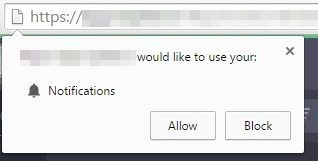
First time wrtc.adv.startPushNotifications() is called browser will ask user for permissions:
Stop Push Notifications
The user may stop push notifications at any time by blocking notifications in either browser configuration or by right clicking a notification popup and select deny. That is why we attempt to restart notifications on each wrtc.onLoggedIn(). If user has denied push notifications next call to wrtc.adv.startPushNotifications() will trigger wrtc.onNotifications(false). See section "Blocked state" below.
You can also stop push notifications programatically by calling wrtc.adv.startPushNotifications("stop") and removing cid= from cookie:
wrtc.adv.startPushNotifications("stop");
document.cookie= "cid=; expires=Fri, 31 Dec 1970 23:59:59 GMT";
States
Push notifications can be in four different states:
- Not used - This is the default state, or after wrtc.adv.startPushNotifications("stop")
- Enabled - Notifications are started and you can receive calls even when browser is closed. Indicated by wrtc.onNotifications(true)
- Blocked - User has blocked notifications in browser. Indicated by wrtc.onNotifications(false)
- Error - Notifications could not be started. Indicated by wrtc.onError(), error 621. Check errorMsg for details.
To detect if notifications are in enabled, blocked or error state attempt to restart them by calling wrtc.adv.startPushNotifications()
Blocked state
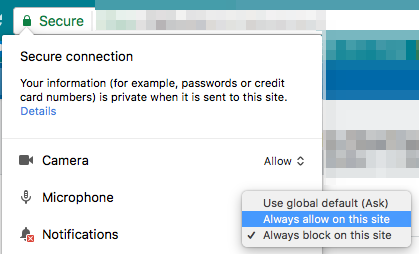
If user has blocked notifications in the browser there is no way notifications can be started from web page javascript code again. You must instead instruct user how to allow notifications again:
"Notifications are blocked by browser. To enable them again please click on padlock icon in browser address field and select Notifications: Always allow on this site."
GCM vs Web Push Notifications
GCM is a proprietary protocol originally used by Google to push notifications to Android apps. It has since been migrated to Firebase Cloud Messaging (FCM) by Google. Desktop Chrome supports GCM since version 45.0. No other browsers support GCM.
Web Push Notifications is a global W3 standard supported by most modern browsers.
Due to historic reasons wrtc_kit.js supports the older GCM protocol but neither FCM nor Web Push Notifications. Support for Web Push Notifications may be added in the future though.
Limitations
Push notifications can not transfer any information (eg who is calling you). This is a limitation in Chrome's implementation of GCM.
Push notifications can not play any sound (eg phone ringing sound). This is a limitation in Chrome's implementation of GCM.
Helper Files
There are two helper files involved in push notifications: manifest.json and sw.js:
manifest.json
Located in /luci-static/resources/cbi the manifest.json file is used by Firebase to activate GCM Notifications:
- manifest.json
{
  "name": "Webrtc demo client",
  "short_name": "WDC",
  "icons": [{
    "src": "/luci-static/resources/cbi/empty144.png",
    "sizes": "144x144"
  }],
  "start_url": "cgi-bin/luci/wrtcform",
  "display": "standalone",
  "gcm_sender_id": "279685133220",
  "gcm_user_visible_only": true
}
You can access this file using More Services > Webserver > Resources in the config GUI.
The icon empty144.png is required by Firebase though not actually used anywhere.
start_url must point to the path of the page shown.
gcm_sender_id must be set to the sender ID of your Firebase project, if you are not using the default test project.
sw.js
Located in / the sw.js file contains the Chrome Service Worker used for GCM Notifications:
- sw.js
var wrtcsw_origin;

self.addEventListener('push', function (event) {
  console.log('[Service Worker] Push Received: ', event);
  wrtcsw_origin = event.srcElement.location.origin;
  var options = {
    body: 'click to open web client',
    icon: '/luci-static/resources/cbi/ingate.png'
  };
  event.waitUntil(self.registration.showNotification('Incoming call', options));
});

self.addEventListener('notificationclick', function(event) {
  event.notification.close();
  event.waitUntil(clients.openWindow(wrtcsw_origin));
});
This file must be in the base directory of the same web server as used to deliver webrtc client webpage - thus if you host your webpage somewhere else you must store sw.js too on that webserver, and store its URL in wrtc.i.swPath in wrtc.init()
event.waitUntil(clients.openWindow(wrtcsw_origin)); in last line makes Notification popup open main webpage on IXNX user web server when you click on it. If you host your webpage somewhere else you need to replace wrtcsw_origin with your URL, eg event.waitUntil(clients.openWindow("https://foo.com/bar.htm"));